_5949de.png)

Steam
Користувач
-
Зареєстровано
-
Відвідування
Весь контент Steam
-
We have just shipped an updated Steam Client to the Preview/Beta channel. General: Fixed a regression that caused non-Steam games to fail to launch. Fixed the onscreen keyboard not working the first time it is invoked on desktop. Remote Play: Improved color accuracy when streaming an OpenGL game. Переглянути повний текст статті
-
The Steam Client Beta has been updated with the following changes: General: Fixed the onscreen keyboard not working the first time it is invoked on desktop. Remote Play: Improved color accuracy when streaming an OpenGL game. Linux: Fixed a regression that caused non-Steam games to fail to launch. Переглянути повний текст статті
-
We have just shipped an updated Steam Client to the Preview/Beta channel. General: Fixed the Recordings & Screenshots dialog not showing all games that have related screenshots in the game filter dropdown. Improved the text layout in achievement notifications when the name, description or both wrap across multiple lines. Fix some cases of header/footer flicker and invisibility during the first seconds after waking from sleep. When waking from sleep with a game running but the account now playing elsewhere: Provide an option to exit the local game. Go back to sleep if there is no input for 60 seconds. Fixed issues with trackpad typing if the trackpad is touched while the onscreen keyboard is opening Steam Input: Improved the consistency of trackpad sensitivity between Steam Deck and Steam Controller Fixed cases where the Virtual menu modes could show the wrong activation type if it was created in the standalone menu vs from a controller source Implemented a version of the "Reorder Controller" dialog for Steam Input API games. Note - this disconnects the controllers temporarily so older games which do not handle hot plugging properly can lose controller input Additional polish for the multibinding page In the desktop UI overlay the desktop config will now be applied. For most gamepads this will not be a difference in behavior because they have a blank desktop config, but Steam Controllers or devices that have setup a custom desktop config will have mouse input to click on things in the overlay. Remote Play: Improved color accuracy when streaming from a Windows computer Fixed the mouse cursor when streaming from Linux using the SteamRT3C client Fixed a capture lockup when streaming from pipewire on Linux and SteamOS Reduced Pyrowave latency when streaming from pipewire on Linux and SteamOS Added the -pyrowavestats command line option to log Pyrowave encoding performance SteamRT3 Experimental Beta Fixed Steam overwriting PATH, LD_PRELOAD, and LD_LIBRARY_PATH variables when launching games. Переглянути повний текст статті
-
The Steam Client Beta has been updated with the following changes: General: Fixed the Recordings & Screenshots dialog not showing all games that have related screenshots in the game filter dropdown. Improved the text layout in achievement notifications when the name, description or both wrap across multiple lines. Big Picture: The mouse is now hidden in the overlay until there's mouse movement Fixed issues with trackpad typing if the trackpad is touched while the onscreen keyboard is opening Steam Input: Improved the consistency of trackpad sensitivity between Steam Deck and Steam Controller Fixed cases where the Virtual menu modes could show the wrong activation type if it was created in the standalone menu vs from a controller source Implemented a version of the "Reorder Controller" dialog for Steam Input API games. Note - this disconnects the controllers temporarily so older games which do not handle hot plugging properly can lose controller input Additional polish for the multibinding page In the desktop UI overlay the desktop config will now be applied. For most gamepads this will not be a difference in behavior because they have a blank desktop config, but Steam Controllers or devices that have setup a custom desktop config will have mouse input to click on things in the overlay. Remote Play: Improved color accuracy when streaming from a Windows computer Fixed the mouse cursor when streaming from Linux using the SteamRT3C client Fixed a capture lockup when streaming from pipewire on Linux and SteamOS Reduced Pyrowave latency when streaming from pipewire on Linux and SteamOS Added the -pyrowavestats command line option to log Pyrowave encoding performance SteamRT3 Experimental Beta Fixed Steam overwriting PATH, LD_PRELOAD, and LD_LIBRARY_PATH variables when launching games. Переглянути повний текст статті
-
This update is for the SteamOS Beta and Preview channels, and includes new features that are still being tested. You can opt into this in Settings > System > System Update Channel. These notes contain all changes since the current stable SteamOS 3.8 release, with the changes added since the previous 3.9 preview releases noted below New in SteamOS 3.9.2General Add preliminary support for Legion Go 2 brightness control Fixed Steam Remote Play not working on Steam Machine when booting with no external display connected Fixed "Disable Frame Limiter" toggle not working when VRR is enabled Fixed the frame limiter incorrectly applying to VR titles when streaming from Steam Machine to Steam Frame Fixed loss of input if a launcher window is accidentally dragged around in Game Mode Fixed logging in to Desktop Mode via RDP with system users when enabled Fixed an issue causing certain games (incl. ELDEN RING and DARK SOULS™ III) to fail to run on recent Panther Lake Intel CPUs Worked around a firmware issue on some ASUS devices causing excessive fan speed upon waking from sleep Fixed a bug causing hidden WiFi networks to fail to connect on the first attempt Fixed boot screen corruption on Intel PTL+ devices Fixed a regression from previous 3.9 previews causing Steam Machine to occasionally wake from hibernation unexpectedly Fixed a regression from previous 3.9 previews slowing down system boot speed and causing the boot logo to briefly vanish during boot Fixed a regression from previous 3.9 previews breaking virtual keyboard input for some languages in Game Mode Fixed a regression from previous 3.9 previews with nested desktop mode Security and stability fixes SteamOS 3.9General Updated Arch Linux base Updated Desktop Mode from Plasma 6.4.3 to Plasma 6.7.3 For more information, see https://kde.org/announcements/plasma/6/6.7.0/ https://kde.org/announcements/plasma/6/6.6.0/ https://kde.org/announcements/plasma/6/6.5.0/ Fixed a system crash when launching Forza Horizon 6 on Legion Go 2 Fixed an issue causing frame limits to result in lower than intended FPS on certain external displays Fixed issues with suspend/resume on systems with RDNA1 or RDNA2 based dedicated GPUs Security and stability updates Misc Updated the bootloader to improve compatibility with certain motherboards The Desktop Mode lockscreen is no longer prevented from being explicitly enabled in settings (but remains off by default) Developer Switched WiFi backend to wpa_supplicant by default for new installations, improving compatibility with various WiFi networks Enhanced wpa_supplicant to support fast WiFi reconnect on resume from sleep, previously only available in the iwd backend Known issue: Existing installations will continue to use iwd unless manually enabled in Developer Settings Linux kernel rebased on Linux 7.2 Added preliminary support for hibernation, not yet exposed in Game Mode UI Enhanced Linux kernel hibernation support to enable interrupting hibernate requests and fixed various driver issues Various scripts and packages have been renamed from `steamos-` to `holo-`, with aliases to the former names where appropriate Improved support for running SteamOS as a VM guest with accelerated graphics (virtio-gpu, venus) Updated included renderdoc version Переглянути повний текст статті
-
SteamOS 3.8.28 has just been released for all users with the following changes: These notes contain all changes since the previous SteamOS 3.8.16 stable release. See here for changes since the previous SteamOS 3.8.27 beta release. General Updated Mesa graphics driver to a new major release, containing many ray-tracing performance improvements, as well as other performance and functionality improvements Greatly improved VRAM management, improving performance and stability in cases where VRAM is limited The Steam Machine splash screen/logo now appears much more quickly after device startup Added support for waking up from the Steam Controller Wireless Adapter (2015) Improved battery indications when the device is charging in but using more power than the charger can provide Preliminary support for the Steam Frame Wireless Adapter Added support for Steam Controller (2026) to the built-in [c]hid_steam[/c] controller driver, enabling use with native controller applications when Steam is not running Fixed 20-30s startup delay in some games on non-Valve devices with no audio sources Fixed delayed start time for some games under Proton when no capture device is present Fixed an issue causing black screens in certain launchers, including Zenless Zone Zero and FINAL FANTASY XIV Online Fixed an issue where hotplugging HDMI displays could cause lockups in Desktop Mode Fixed an issue where TVs supporting an HDMI "Game Mode" would display the initial boot logo on startup before engaging said mode, causing unnecessary delay and flashing Fixed some cases of slow or stuck Wi-Fi connections with certain adapters Fixed an issue causing previous SteamOS updates to fail to apply for some users Fixed Firefox in Desktop Mode sometimes freezing when fullscreen Worked around an issue where Unreal Engine 5 VR games could display a blank right eye Fixed Bluetooth instability with Nintendo Switch Pro (v1) controller Fixed Desktop Mode allowing resolutions below 640x480 on certain displays, rendering it unusable Fixed a bug where the system would freeze on resume if an SD card was removed while suspended Fixed a rare Steam Deck issue where fan speed would revert to BIOS control until a reboot, resulting in higher than normal fan speeds Fixed an issue where game performance could be degraded after sleep/resume on systems with AMD discrete GPUs Steam Machine Firmware 108 Fixed an issue where the system could occasionally wake up immediately after going to sleep Fixed a rare issue where CPU performance could be degraded until reboot after waking up from sleep Audio Add option to reset all audio configuration and settings to system defaults under Settings -> Audio Fix for HDMI audio dropouts with some game and TV combinations Improve reliability of HDMI hotplug detection Add option to prefer lower latency audio codecs for Bluetooth devices Non-Valve Devices Improve support for MSI Claw and OneXPlayer device variants Improve support for devices with external or no Wi-Fi adapters Fixed an infrequent bug where some 3rd party handhelds would have input ignored when held Added initial gamepad support for MSI Claw 8 EX AI+ Added initial gamepad support for Konkr FIT Added initial gamepad support for AYANEO Pocket S2 Updated gamepad support for OneXPlayer Apex with new firmware Added controller support for missing OneXPlayer F1 and OneXPlayer 2 special edition models Fixed a regression with some MSI Claw devices on newer firmware losing access the Guide and Quick Access Menu buttons Fixed a regression with Legion Go 1 models on older controller firmware where gyroscope would fail to initialize Fixed a regression on OneXPlayer F1 models where rumble was being blocked and the joystick poll rate was low. As a consequence, the M1 (left) extra shoulder button is no longer able to function. Fixed issues with battery display on Lenovo Legion Go models Fixed a bug where the MSI Claw would freeze on resume if an SD card was present during suspend and resume Developer Updated the Linux kernel to 6.18.50 Переглянути повний текст статті
-
The Steam Client Beta has been updated with the following changes: Big Picture Mode Fixed the on-screen keyboard not popping up in non-Steam games after toggling wifi or suspending the machine Steam Input Fixed the glyphs shown for the Xbox Elite Controller paddle buttons Remote Play: Pyrowave Fixed occasional flickering when streaming to Linux and SteamOS clients Switched encoding to use the compute queue to avoid contention with game GPU usage Fixed GPU memory leak on the client when frequently changing resolutions Переглянути повний текст статті
-
We have just shipped an updated Steam Client to the Preview/Beta channel. General Fixed the on-screen keyboard not popping up in non-Steam games after toggling wifi or suspending the machine Steam Input Fixed the glyphs shown for the Xbox Elite Controller paddle buttons Remote Play: Pyrowave Fixed occasional flickering when streaming to Linux and SteamOS clients Switched encoding to use the compute queue to avoid contention with game GPU usage Fixed GPU memory leak on the client when frequently changing resolutions Переглянути повний текст статті
-
This update is for the SteamOS Beta and Preview channels, and includes new features that are still being tested. You can opt into this in Settings > System > System Update Channel. General Fixed an issue where game performance could be degraded after sleep/resume on systems with AMD discrete GPUs Переглянути повний текст статті
-
The Steam Client Beta has been updated with the following changes: Big Picture Mode Using a physical mouse to click on text input will no longer bring up the On-Screen Keyboard Steam Input Fixed showing doubled Xbox style controllers on Windows Fixed showing doubled Steam Controllers on macOS Fixed regression with rumble on 3rd party SteamOS Handhelds Improved the styling of multibinding rows in the configuration mapping screen Remote Play Added an experimental video codec, Pyrowave, which allows high bandwidth, low latency video streaming. You can find out more on the Steam Remote Play discussion group. Переглянути повний текст статті
-
We have just shipped an updated Steam Client to the Preview/Beta channel. General Using a physical mouse to click on text input will no longer bring up the On-Screen Keyboard Steam Input Fixed regression with rumble on 3rd party SteamOS Handhelds Improved the styling of multibinding rows in the configuration mapping screen Remote Play Added an experimental video codec, Pyrowave, which allows high bandwidth, low latency video streaming. You can find out more on the Steam Remote Play discussion group. Переглянути повний текст статті
-
We have just shipped an updated Steam Client to the Preview/Beta channel. General Added support for keyboard glyphs in the footer when using mouse/kb to interact with Big Picture Mode Steam Input Added a new view in the configurator for Steam Input API games that lists out actions and their bindings rather than inputs to actions along with streamlined binding interface Added a new multi-binding page in the configurator for authoring button combinations that visualizes the timeline of command outputs and their settings Added support for inverting button chord bindings Fixed older-unnamed Virtual Menus showing up as "Create Virtual Menu" in some views SteamRT3 Experimental Beta Fixed Night Mode Remote Play Fixed EULA acceptance when starting a Remote Stream. Переглянути повний текст статті
-
The Steam Client Beta has been updated with the following changes: Big Picture Mode Added support for keyboard glyphs in the footer when using mouse/kb to interact with Big Picture Mode Steam Input Added a new view in the configurator for Steam Input API games that lists out actions and their bindings rather than inputs to actions along with streamlined binding interface Added a new multi-binding page in the configurator for authoring button combinations that visualizes the timeline of command outputs and their settings Added support for inverting button chord bindings Added support for switching into Lizard mode on the new Steam Controller when interacting with UAC windows or other places where Windows blocks Steam Input Fixed older-unnamed Virtual Menus showing up as "Create Virtual Menu" in some views Remote Play Fixed EULA acceptance when starting a Remote Stream. Переглянути повний текст статті
-
The Steam Client Beta has been updated with the following changes: Windows Fixed regression causing some games to crash on launch. Fixed a crash at launch on computers with EZFRD64.DLL installed Linux Fixed regression causing crash in native Linux version of some games. Fixed regression with bottom download progress bar not showing download progress. Fixed an issue where virtual gamepads were torn down temporarily when a game called the ISteamUtils::SetGameLauncherMode api, which could cause titles that don't support controller hotplugging to lose input Remote Play Fixed incorrect colors when streaming from a Windows computer with an AMD GPU Переглянути повний текст статті
-
We have just shipped an updated Steam Client to the Preview/Beta channel. General Fixed regression causing crash in native Linux version of some games. Fixed regression causing flicker and unwanted UI briefly after waking from sleep. Fixed an issue where virtual gamepads were torn down temporarily when a game called the ISteamUtils::SetGameLauncherMode api, which could cause titles that don't support controller hotplugging to lose input Переглянути повний текст статті
-
This page is a collection of stuff that will help you get the most out of your Steam Hardware. Переглянути повний текст статті

-
Note: This update is for the Steam Deck Preview channel, and includes new features that are still being tested. You can opt into this in Settings > System > System Update Channel. Note on Preview Releases This is an early Preview build of SteamOS 3.9, and may contain unexpected bugs or stability issues. If you encounter problems, please consider filing a bug on the SteamOS issue tracker. These notes contain all changes since the current stable SteamOS 3.8 release, with the changes added since the previous preview noted below New in SteamOS 3.9.1General Fixed a system crash when launching Forza Horizon 6 on Legion Go 2 Fixed an issue causing frame limits to result in lower than intended FPS on certain external displays Fixed issues with suspend/resume on systems with RDNA1 or RDNA2 based dedicated GPUs Fixed a regression in seamless boot causing the boot logo to disappear prior to the Steam startup animation Fixed a rare issue where fan speed would revert to BIOS control until a reboot, resulting in higher than normal fan speeds on Steam Deck Security and stability updates Developer Fixed verbose-mode boots, triggered by the [c]steamos-bootdebug[/c] utility or chainloader menu, having their output hidden by plymouth Updated included renderdoc version SteamOS 3.9General Updated Arch Linux base Updated Desktop Mode from Plasma 6.4.3 to Plasma 6.7.3 For more information, see https://kde.org/announcements/plasma/6/6.7.0/ https://kde.org/announcements/plasma/6/6.6.0/ https://kde.org/announcements/plasma/6/6.5.0/ Misc Updated the bootloader to improve compatibility with certain motherboards The Desktop Mode lockscreen is no longer prevented from being explicitly enabled in settings (but remains off by default) Developer Switched WiFi backend to wpa_supplicant by default for new installations, improving compatibility with various WiFi networks Enhanced wpa_supplicant to support fast WiFi reconnect on resume from sleep, previously only available in the iwd backend Known issue: Existing installations will continue to use iwd unless manually enabled in Developer Settings Linux kernel rebased on Linux 7.2 Added preliminary support for hibernation, not yet exposed in Game Mode UI Enhanced Linux kernel hibernation support to enable interrupting hibernate requests and fixed various driver issues Various scripts and packages have been renamed from `steamos-` to `holo-`, with aliases to the former names where appropriate Improved support for running SteamOS as a VM guest with accelerated graphics (virtio-gpu, venus) Переглянути повний текст статті
-
This update is for the SteamOS Beta and Preview channels, and includes new features that are still being tested. You can opt into this in Settings > System > System Update Channel. General Fixed a rare issue where fan speed would revert to BIOS control until a reboot, resulting in higher than normal fan speeds Переглянути повний текст статті
-
Steam's Party-Based RPG Fest is here, which means the more the merrier in these games. Play multiple characters, level up, and party on in games that let you use magic, do battle, embark on epic quests and heists... and more! Head on over now to Steam's Party-Based RPG Fest, on through September 21st on Steam. Переглянути повний текст статті

-
Steam's Party-Based RPG Fest is here, which means the more the merrier in these games. Play multiple characters, level up, and party on in games that let you use magic, do battle, embark on epic quests and heists... and more! Head on over now to Steam's Party-Based RPG Fest, on through September 21st on Steam. Переглянути повний текст статті
-
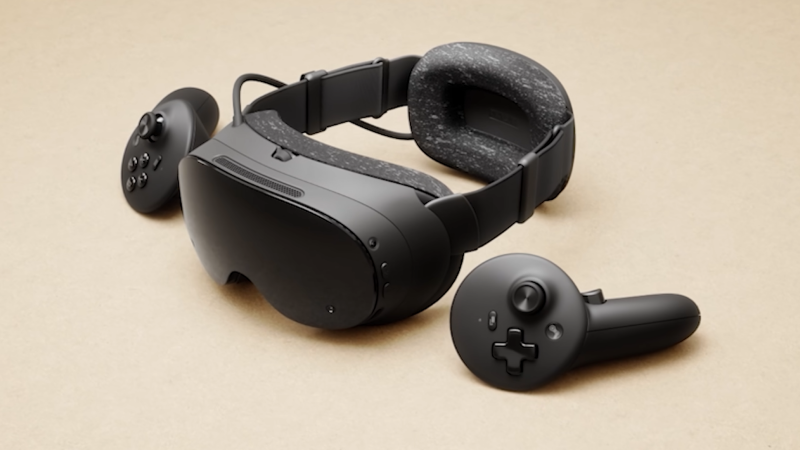
Steam Frame launches today! Sign-up for reservations now in the following options: Steam Frame 256GB: 1,059 USD/ 1,529 CAD/ 1,049 EUR/ 889 GBP/ 1,609 AUD/ 4,539 PLN Steam Frame 1TB: 1,299 USD/ 1,859 CAD/ 1,279 EUR/ 1,089 GBP/ 1,969 AUD/ 5,549 PLN All prices are inclusive of VAT where applicable. Steam Frame ships directly via Steam in the U.S., Canada, UK, EU, and Australia; and via KOMODO (an authorized distributor) in Japan, Taiwan, and Hong Kong (South Korea coming soon). Pricing in these regions is available via KOMODO Station. What is Steam Frame? Steam Frame is our wireless VR headset + controllers, built for both VR and non-VR gameplay. Designed for streaming, it can handle your entire Steam library. And it supports stand-alone play too, with over 100 games (and growing) already Steam Frame Standalone Verified. Read more (and check out the specs) on the Steam Frame product page. Half-Life: Alyx is included! Redeem your copy in settings when you log into Steam Frame. (If you already have Half-Life: Alyx in your library, you will not be able to redeem another copy – only one copy can be redeemed per device.) How do I get my hands on a Steam Frame? We're following the same approach we implemented with the launch of Steam Machine, as we found the reservation system helpful in improving the purchase experience and limiting resellers. That means: Beginning right now, you can sign up for the model you'd like to purchase (either Steam Frame 256GB, or Steam Frame 1TB) No time? No worries! Signups remain open until September 17th at 10 a.m. Pacific. At that time, we'll close signups and do a one-time randomization to determine reservation and waitlist order. Based on the results of that randomization, you'll receive an email on September 17th letting you know you're either in the reservation queue or on the waitlist. Here's what that means: If you're in the reservation queue, the model you signed up for has been reserved in your name. As units become available to ship, you'll receive an email with the option to purchase. The first batch of these emails will begin going out on September 18th. If you’ve been added to the waitlist, your place in line is beyond the number of Steam Frames currently available for reservation. We will notify you if you are moved to the reservation queue. In addition, we will also be selling the following first-party Steam Frame accessories. These are sold separately, and will be available as an add-to-cart option only at checkout for those who have received a purchase email: PSU (45W power supply with 2.5m cable): 29 USD/ 49 CAD/ 39 EUR/ 29 GBP/ 49 AUD/ 139 PLN Ergonomic Accessories Kit (2 controller hand straps/battery doors, 1 headset top strap, 1 extended light blocker): 59 USD/ 89 CAD/ 69 EUR/ 59 GBP/ 99 AUD/ 279 PLN Accessory Replacement Kit (1 face gasket, 1 head cushion, 1 standard light blocker): 49 USD/ 69 CAD/ 59 EUR/ 49 GBP/ 89 AUD/ 229 PLN Head to the official Steam Frame product page to learn more and signup. For additional details on the signup process, please visit our FAQ section. You can also watch our official overview/quick start guide videos below! Part 1: Getting Started with Steam Frame Part 2: More about Steam Frame Accessories Переглянути повний текст статті
-
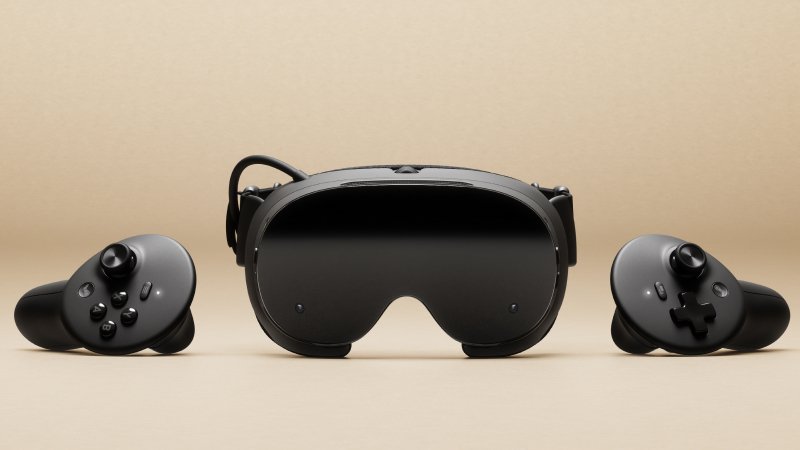
Steam Frame is a streaming-first, wireless VR headset + controllers that can handle your whole Steam library. Step into immersive VR, or lean back and enjoy your non-VR catalog. And it supports stand-alone play too. Переглянути повний текст статті
-
We have just shipped an updated Steam Client to the Preview/Beta channel. General Fixed a regression that would cause the client to crash when interacting with Compatibility Tool selection dropdown if the default compatibility tool has been uninstalled. Fix "Suspend Download Throttle" not properly updating on the downloads page. Steam Input Fixed a regression that broke action set layer binds when editing the configuration Переглянути повний текст статті
-
The Steam Client Beta has been updated with the following changes: General Fix "Suspend Download Throttle" not properly updating on the downloads page. Linux Fixed a regression that would cause the client to crash when interacting with Compatibility Tool selection dropdown if the default compatibility tool has been uninstalled. SteamRT3 Experimental Beta Fixed a regression that prevented the client from launching on Gentoo linux. Steam Input Fixed a regression that broke action set layer binds when editing the configuration Переглянути повний текст статті
-
Today's SteamVR release makes more Steam features available in VR, adds 32-bit OpenXR support, and improves the streaming experience. If you encounter issues with this update, please post in the SteamVR Bug Report forum. If possible, please include a SteamVR System Report to aid in tracking down your issue. The Steam Link for Meta Quest FAQ page is available here. Replies to this post are not tracked for bug reporting purposes. Please use the forum linked above to report issues. General: More in-game Steam features are now accessible in VR, including viewing achievements, community guides, and notes. The Quick Access Menu (familiar to Steam Deck users) is now available on the VR Dashboard bar, integrating notifications, volume, brightness, and battery status. The VR Dashboard bar now exposes shortcuts to common tasks on hover, such as exiting and redocking. Added new slider in Quick Access to control environmental and camera brightness. Overlay apps can be quit directly within the dashboard. Improved orientation of overlays positioned above or below the player. Quick Access Menu shows batteries for additional VR devices. Refined appearance of grab handles (for moving / resizing frames) Grab handles (theater / dashboard / torn-off / keyboard) can be moved in depth using thumbstick Keep floating frames centered when resizing Updated Laser Mouse appearance Updated theater mode placement Recenter (long press system button) is cancellable (B button) Fixed cases of SteamVR dashboard bar disappearance Show user notification when headset framerate changes Move less frequently used window controls to “Additional Options” Menu, and added option to toggle curvature. Improve dashboard placement and motion behavior. New user preference tune laser pointer length (Advanced -> Dashboard -> Laser Pointer Length) Fix missing dashboard icons for non-Steam VR apps. Fix stale Per-App Video Settings when switching the dialog from one app to another, then back again. Environment dimming now handled in a unified manner. Users may tune environment brightness in both theater and non-theater modes under VR Settings. Fixed some rendering issues related to dashboard / overlay cursor visibility Room view now only pauses input to apps when intentionally enabled and set to a style other than "Translucent" Fix for crash when taking screenshots. Fix bug with headset initialization on 3rd party headset when many body trackers are in use. Steam Link (Streaming): Improved VR streaming on slow connections Fix stutters when using Steam Link on NVIDIA cards. Fix an issue causing 1 frame to be dropped every few seconds. Fixed being unable to switch active laser pointer hand when using hand tracking Numerous stability improvements Adds initial support for USB streaming. Note: Requires new Steam Client Beta. Fix loading spinner flickering when framerate in game is low. Fix case where wrong framerates could show in SteamVR Settings. Latency improvements. Fixed scene dimming when dashboard is up. Added support for Contrast Adaptive Sharpening (CAS) prior to encoding. Can be tweaked in SteamVR Settings -> Steam Link -> Sharpen image before encoding. Prevent several cases that would cause video corruption on NVIDIA cards when using Steam Link. OpenXR: Fix XR_EXT_view_configurations_changed event returning width for both the recommended width and height. Fix XrEventDataUserPresenceChangedEXT's session parameter being unset when using XR_EXT_user_presence Improved integrations between HMDs with cameras and chaperone Added support for 32-bit OpenXR applications. Users will be prompted to set SteamVR as their default OpenXR runtime after installing this Beta, which will set up the 32-bit runtime alongside the 64-bit runtime. Linux: Additional improvements to wired headset support on Linux (which previously required third-party add-on layers) Improvements to stability and logging of error states on Linux. Fix crash using Steam Link on Linux when games submit invalid textures. Improve streaming recovery when using Steam Link on Linux. Improved support on vrgames that invert nearZ/farZ Developers Added setting to disable vr streaming auto-connect on resume Added setting to disable chaperone bounds Fix for EVROverlayFlags.MinimalControlBar overlay handling Fix OpenXR bug with image submission for certain non-standard image sizes Переглянути повний текст статті