
Перейти до змісту
View in the app

A better way to browse. Learn more.

Файна Україна

A full-screen app on your home screen with push notifications, badges and more.

To install this app on iOS and iPadOS
  1. Tap the Share icon in Safari
  2. Scroll the menu and tap Add to Home Screen.
  3. Tap Add in the top-right corner.
To install this app on Android
  1. Tap the 3-dot menu (⋮) in the top-right corner of the browser.
  2. Tap Add to Home screen or Install app.
  3. Confirm by tapping Install.

ZywOo 2026 Settings: Mouse Sensitivity, CS2 Crosshair Codes
📅 04.11.2026 23:15⏱ 1 хв читання
Ciko Перегляди: 53 Відповіді: 0
ZywOo 2026 Settings: Mouse Sensitivity, CS2 Crosshair Codes
Давайте підсумуємо всі налаштування ZywOo з Team Vitality у 2026 році, включаючи чутливість миші, коди перехрестя, клавіатуру, монітор та графіку.

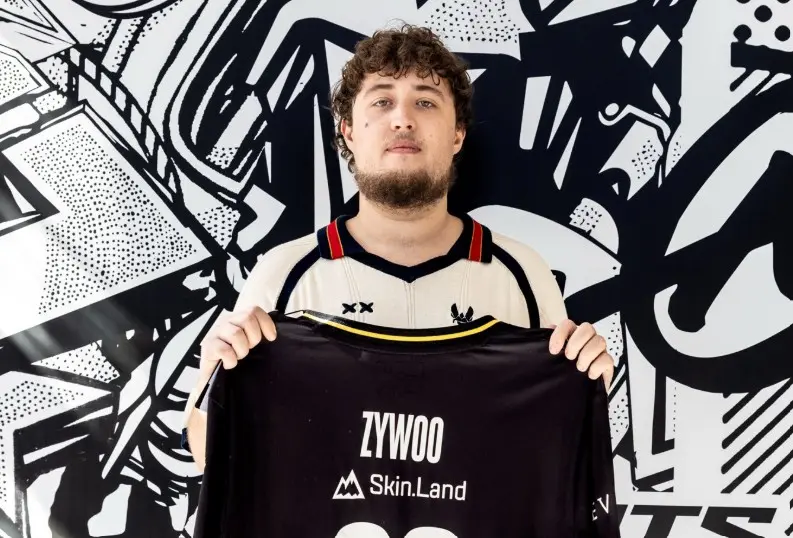
ZywOo from Team Vitality is one of the strongest AWP players on the CS2 scene, and the right settings can make all the difference. Let’s take a look at all of ZywOo’s settings for 2026, including his mouse model, sensitivity, crosshair codes, and much more.

ZywOo’s CS2 Settings Overview

Mathieu “ZywOo” Herbo is one of the most famous Counter-Strike players. He has major titles from Blast.tv Paris 2023, Blast.tv Austin 2025, and StarLadder Budapest 2025. ZywOo has also won three ESL Grand Slam tournaments.

With dozens of MVP awards under his belt, Team Vitality’s AWPer has made a name for himself. He’s known for his proactivity and for seeking out duels, setting the pace of the match. Uniquely, ZywOo is also comfortable playing as a marksman. His Counter-Strike settings reflect this adaptable yet aggressive playstyle.

  • Mouse: Pulsar ZywOo 2nd Generation Mouse.

  • Resolution: 400 dpi

  • Resolution: 800

  • Sensitivity: in-game sensitivity 2, zoom sensitivity 1, Windows sensitivity 6

  • Keyboard: ASUS ROG Falchion Ace HFX ZywOo Edition

  • Mousepad: Pulsar ZywOo The Chosen Mousepad

  • RIP code: CSGO-33tjH-QWX3U-KcSnD-wu3wu-i2pxA

  • Monitor: ZOWIE XL2586X+

  • Headset: ASUS ROG Pelta

Відповідей поки що немає.
Гість
Напишіть відповідь...

Powered by Invision Community
Invision Community Support forums

Акаунт

Навігація

Пошук

Пошук

Configure browser push notifications

Chrome (Android)
  1. Tap the lock icon next to the address bar.
  2. Tap Permissions → Notifications.
  3. Adjust your preference.
Chrome (Desktop)
  1. Click the padlock icon in the address bar.
  2. Select Site settings.
  3. Find Notifications and adjust your preference.